|
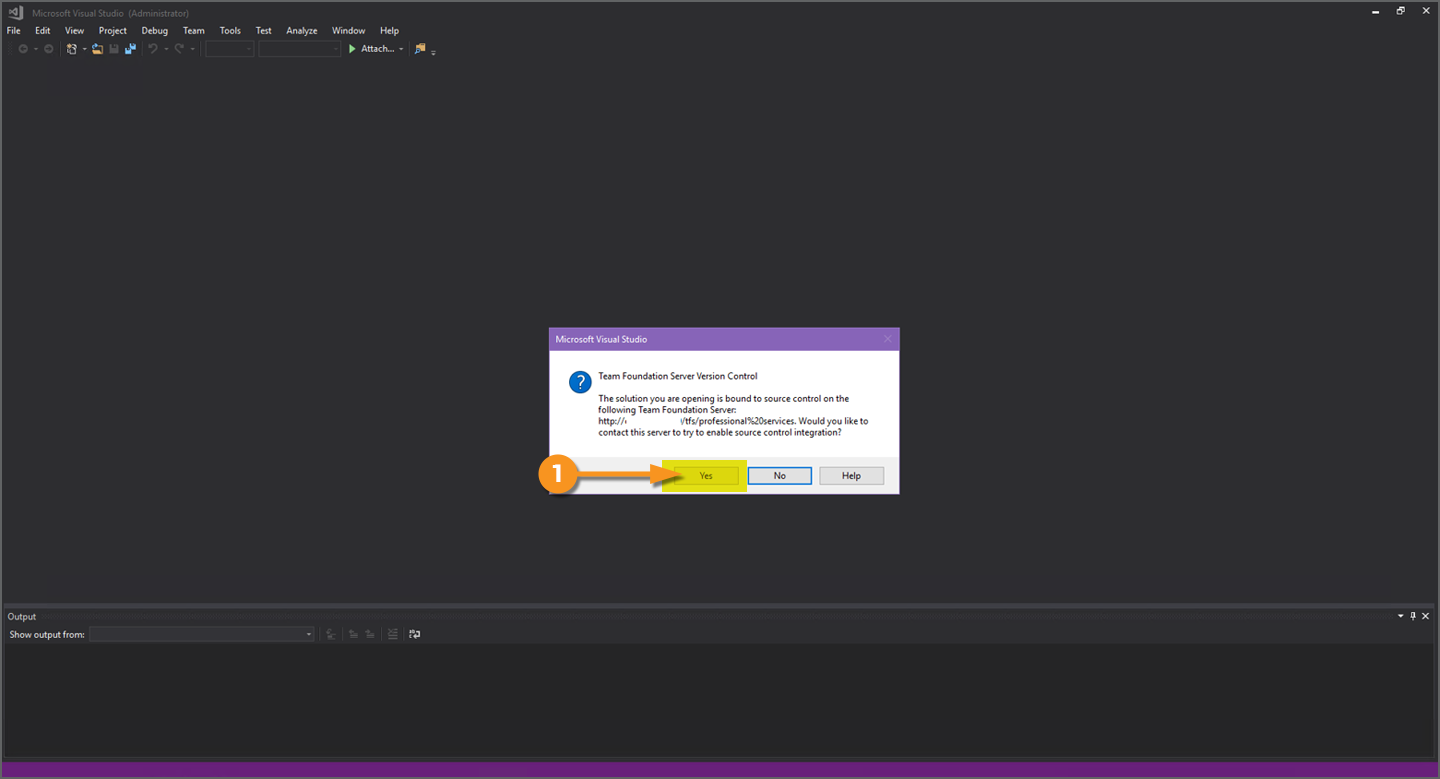
When a script is opened in Visual Studio, and that code is bound to Team Foundation Server (TFS), you will be presented with the following message.
- Click "Yes" to contact the TFS Server.
|
|
|
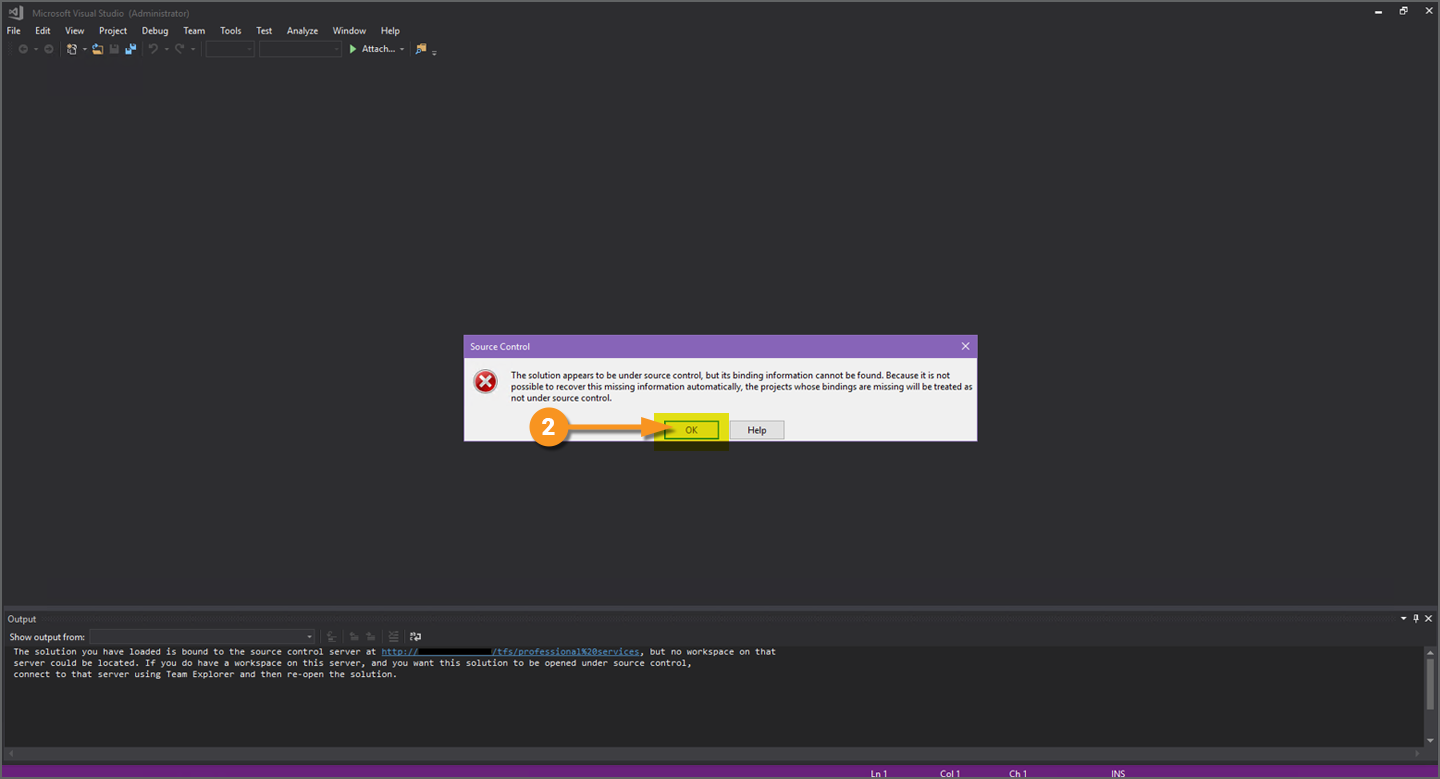
You will be presented with this error message, indicating the "binding information cannot be found".
- Click "OK" to acknowledge the error.
|
|
|
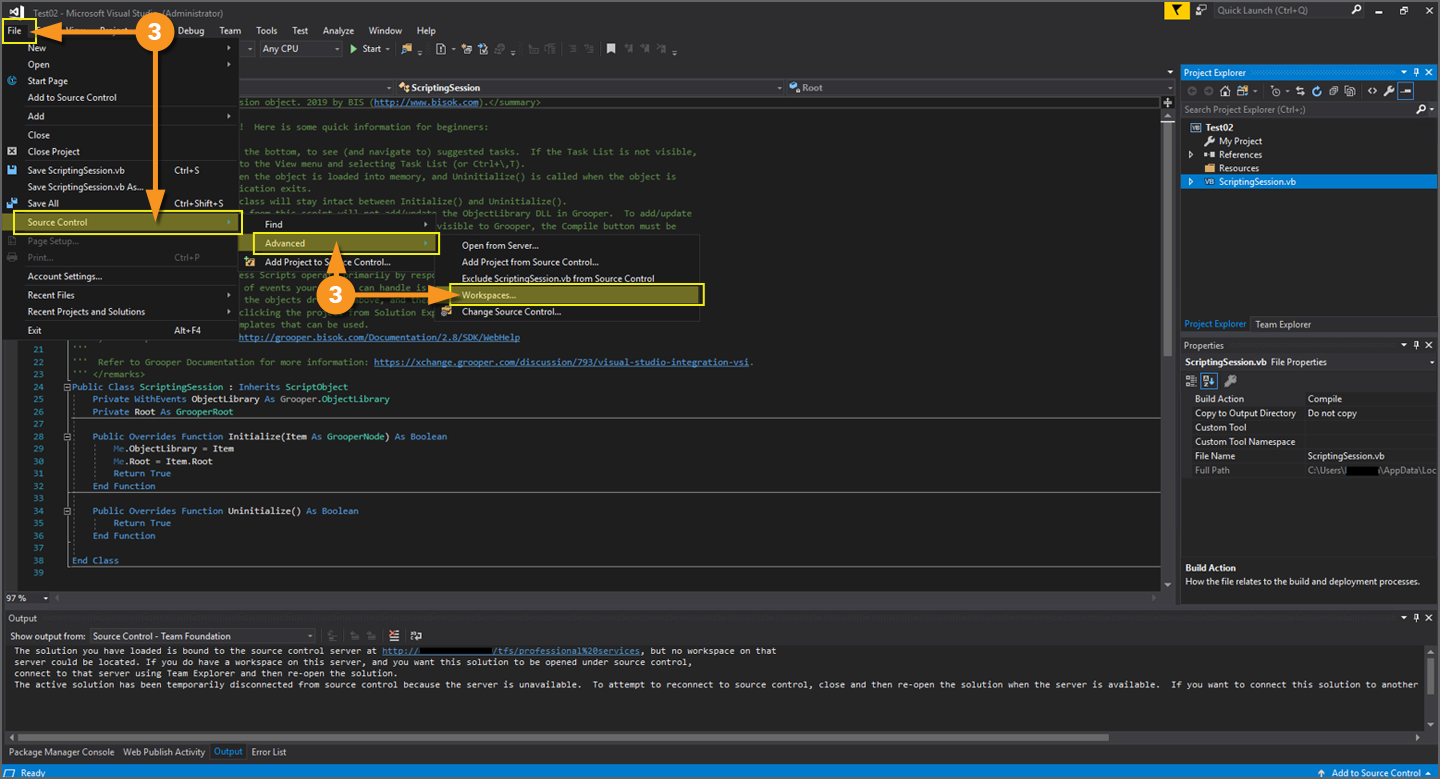
We need to configure a custom TFS binding.
- Navigate to "File > Source Control > Advanced > Workspaces..."
|
|
|
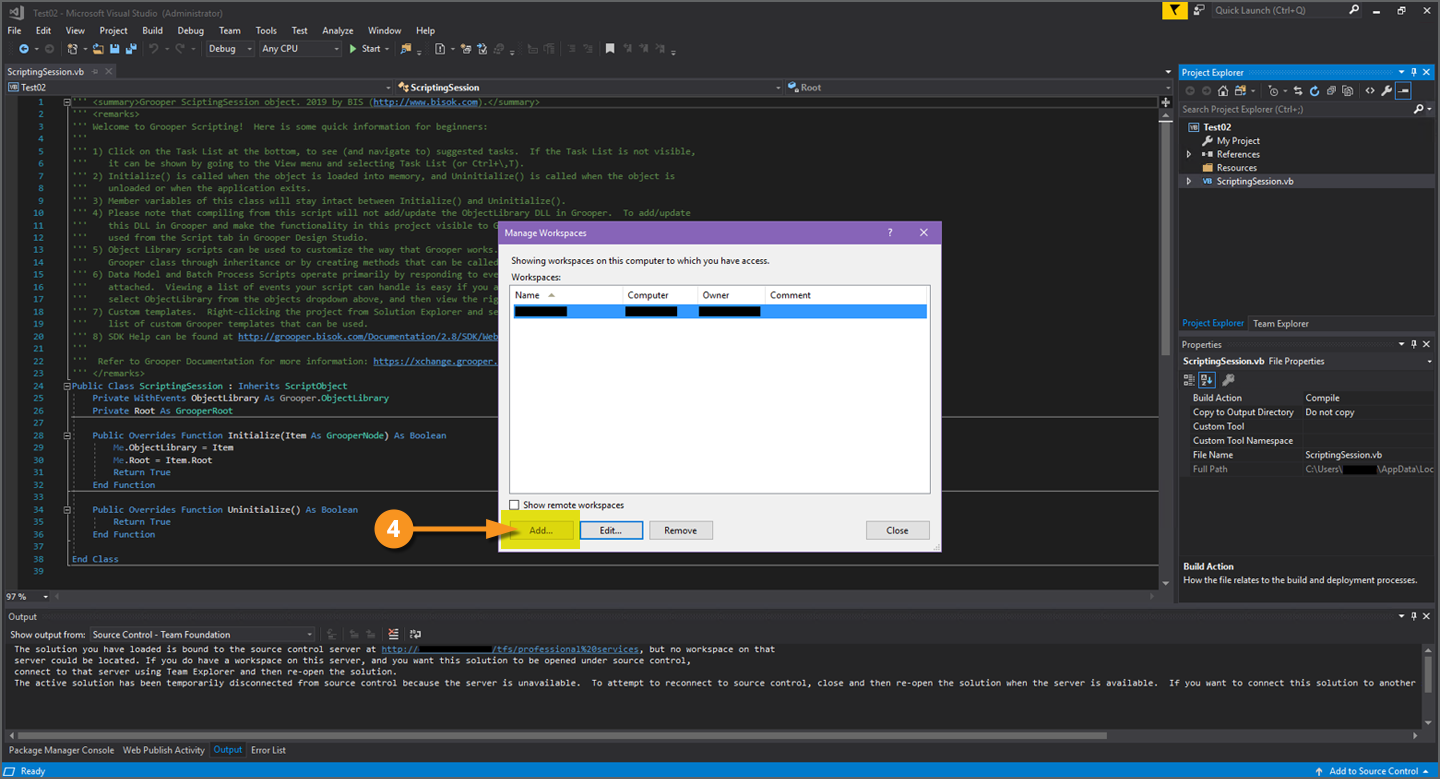
This will bring up the "Manage Workspaces" window.
- Click "Add..." to initialize a new Workspace.
|
|
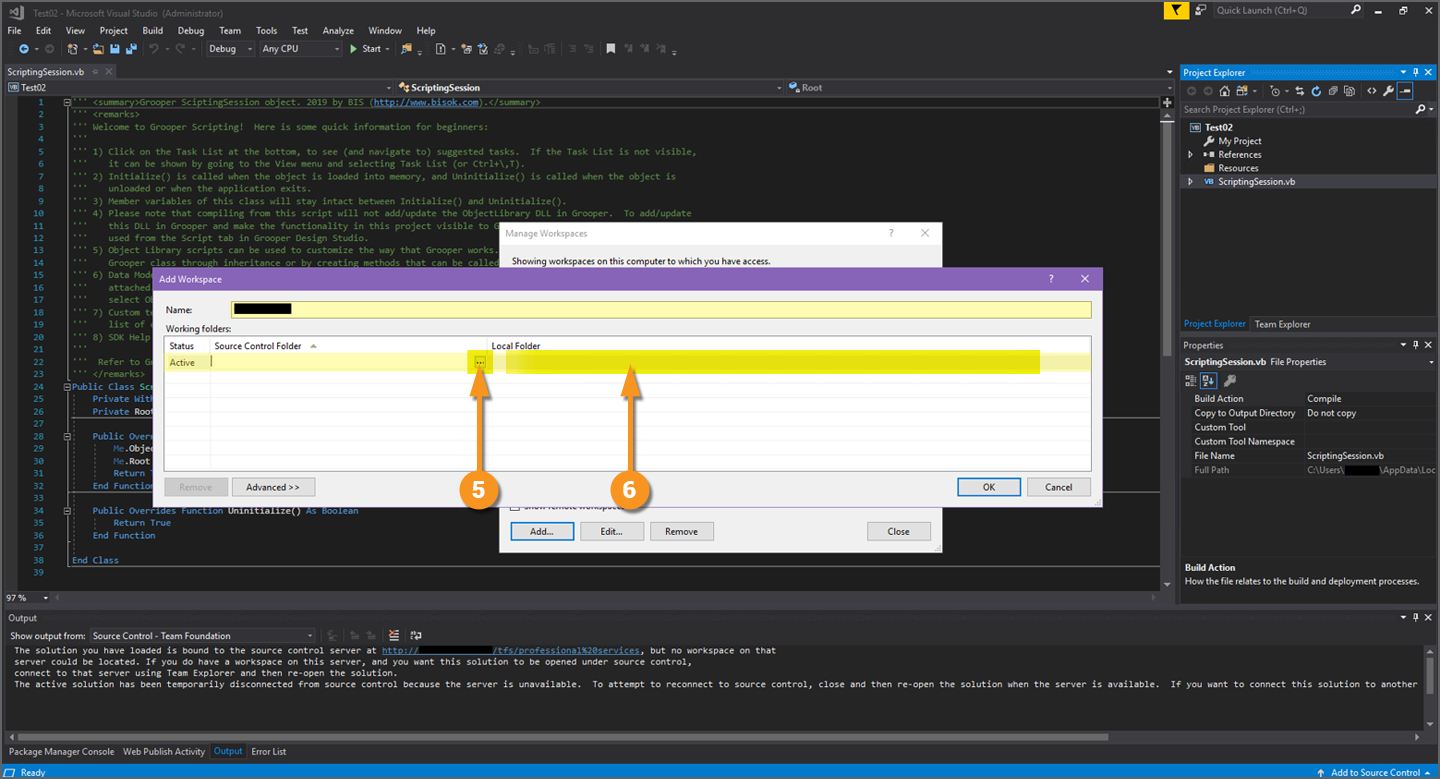
- Under "Source Control Folder", click the ellipsis button and navigate to your solution within the TFS structure.
- Under "Local Folder", type
C:\Users\[username]\AppData\Local\Temp\GrooperScripts\[script] to map the source to your local file system.
- Replace
[username] with your Windows username.
- Replace
[script] with the name of your Grooper script (e.g. the name of your Object Library)
|
|
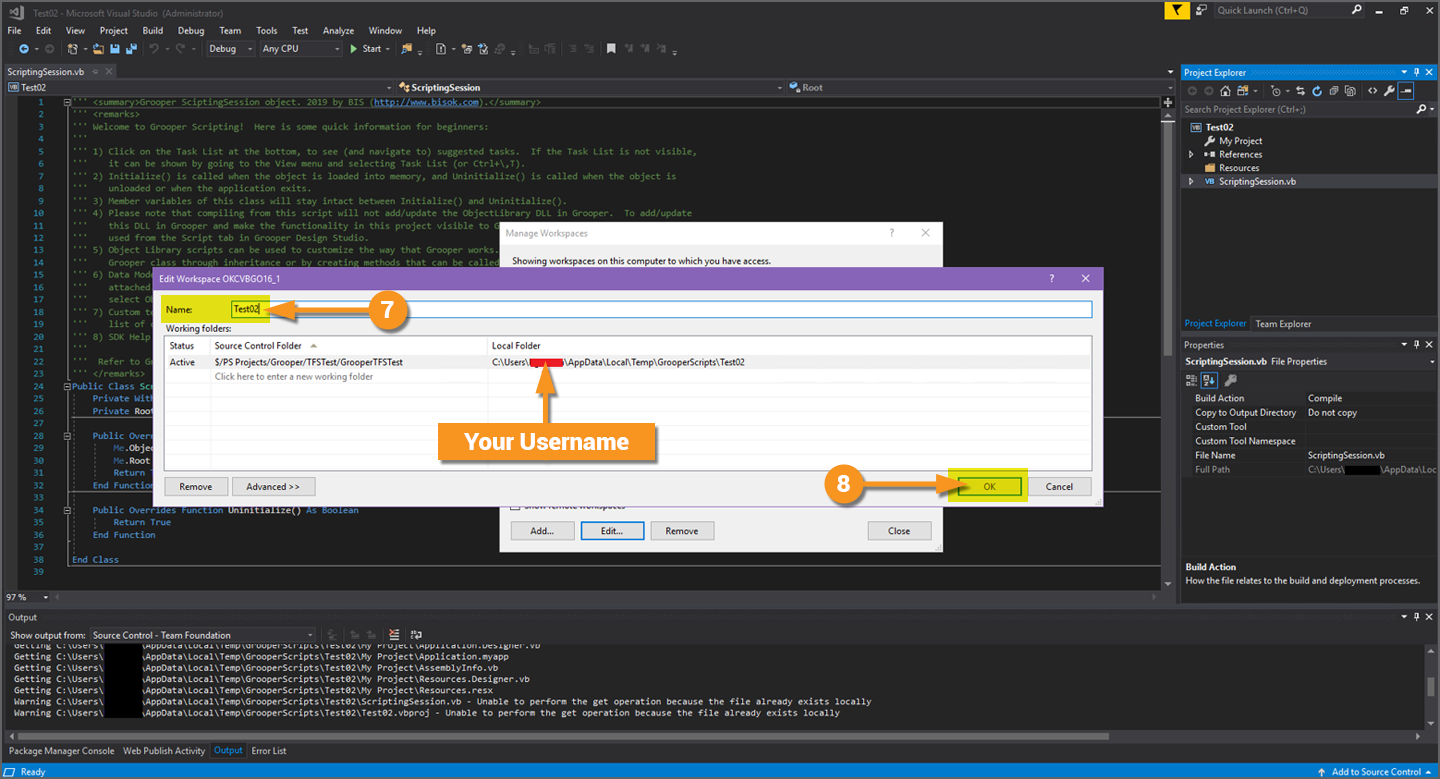
- Give your new Workspace a descriptive name (more descriptive than we've named ours in this tutorial).
- Click "OK" to save the new Workspace.
|
|
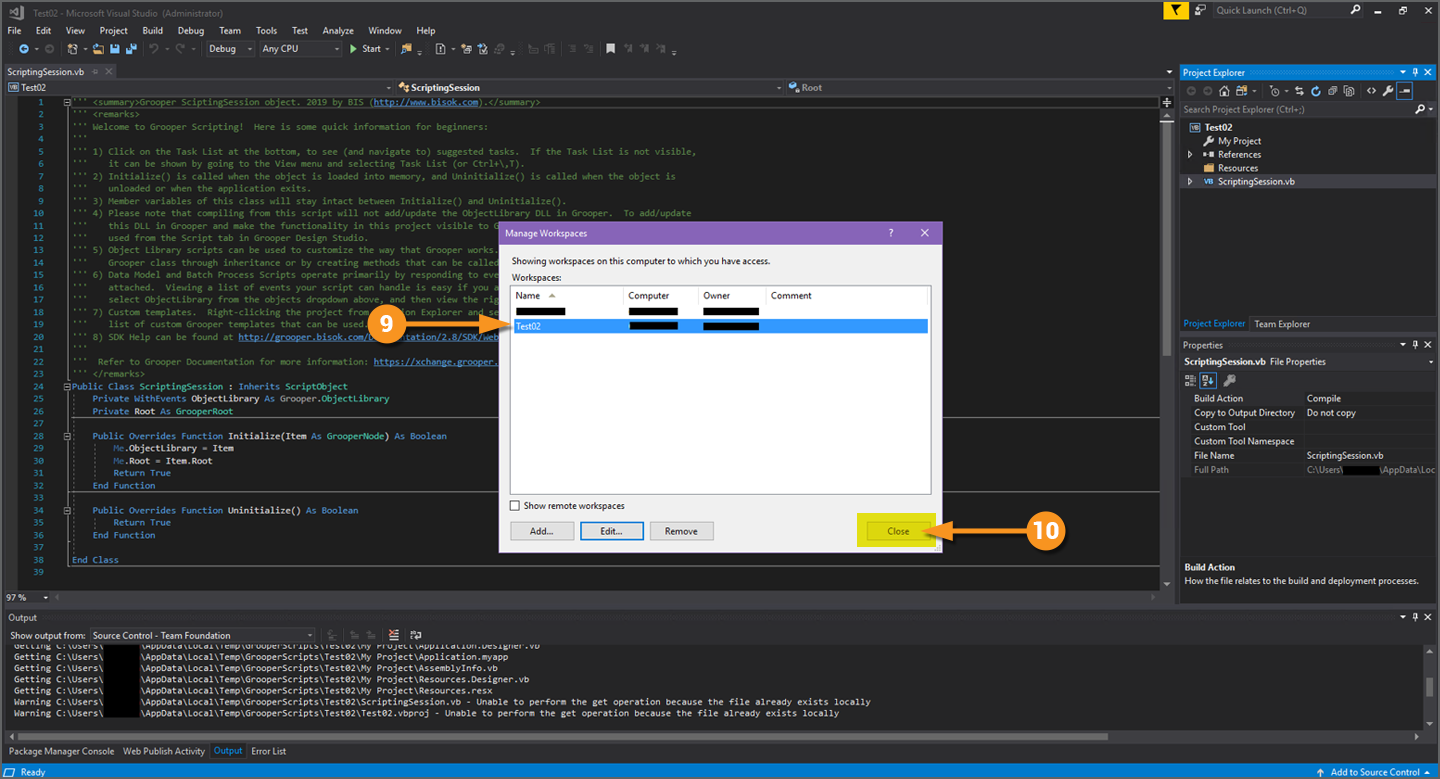
- Once the new Workspace has been created and mapped, you will see it added to the list.
- Click "Close" to continue.
|
|
|
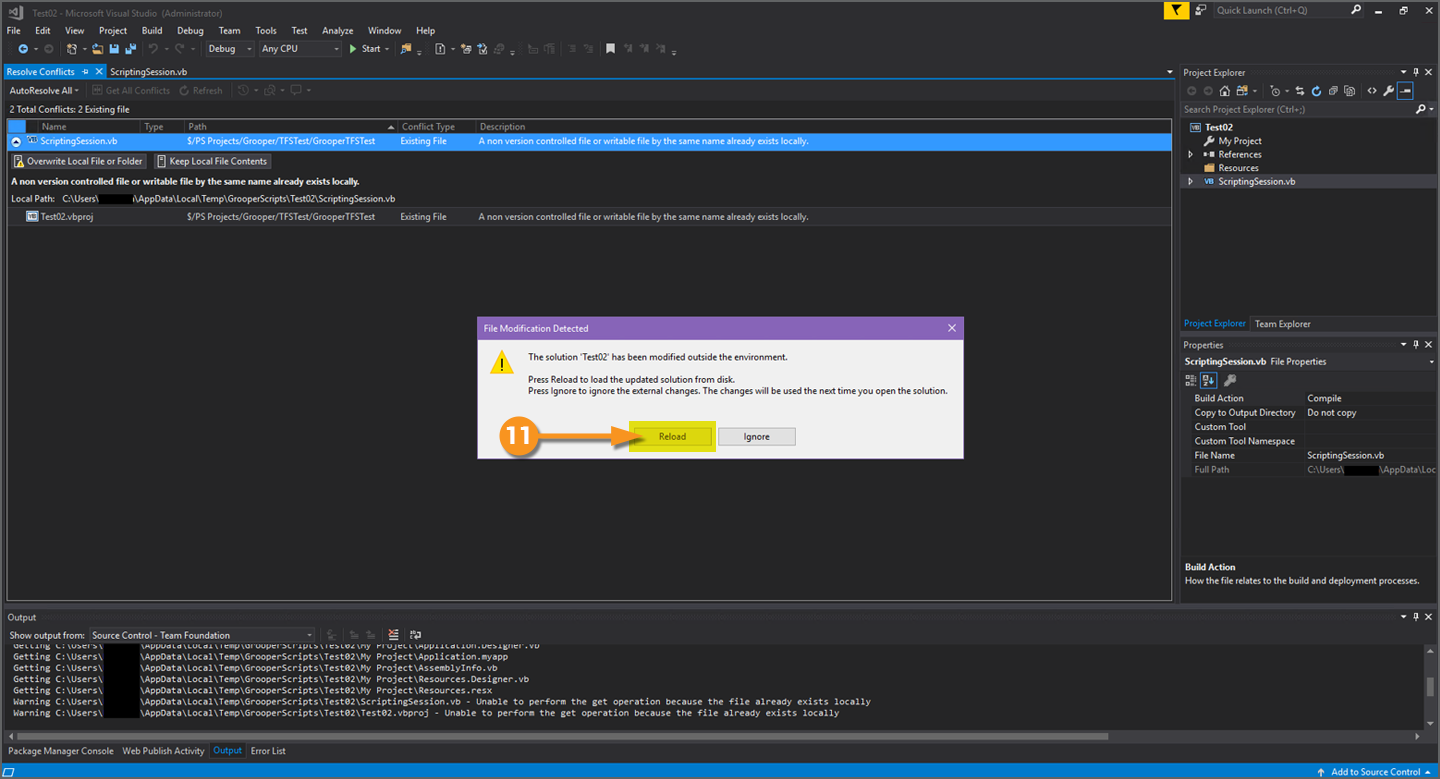
You may receive a message that the solution has been modified and needs to be reloaded.
- Click "Reload" to reload the solution.
|
|
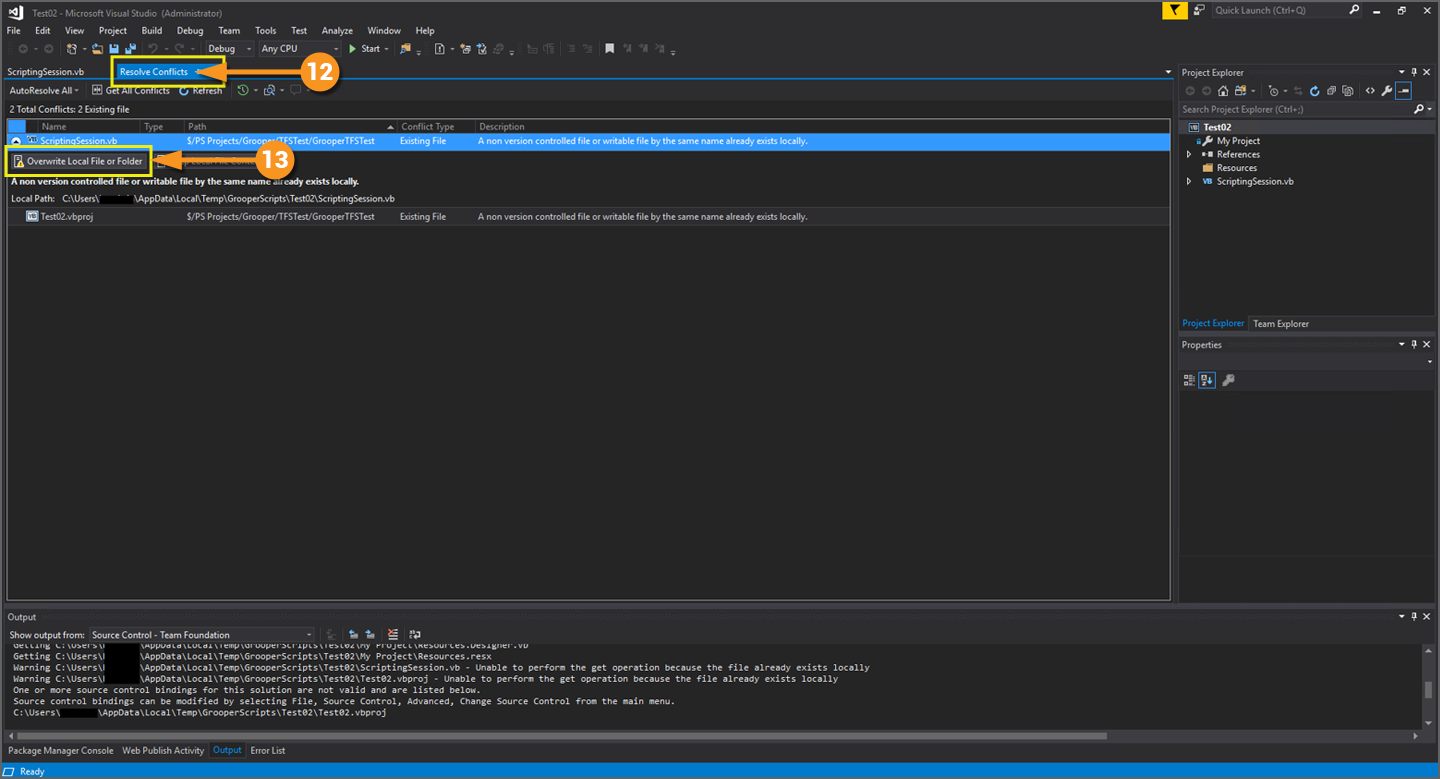
- Navigate to the "Resolve Conflicts" tab.
- Click "Overwrite Local File or Folder"
- You may need to click this twice.
|
|
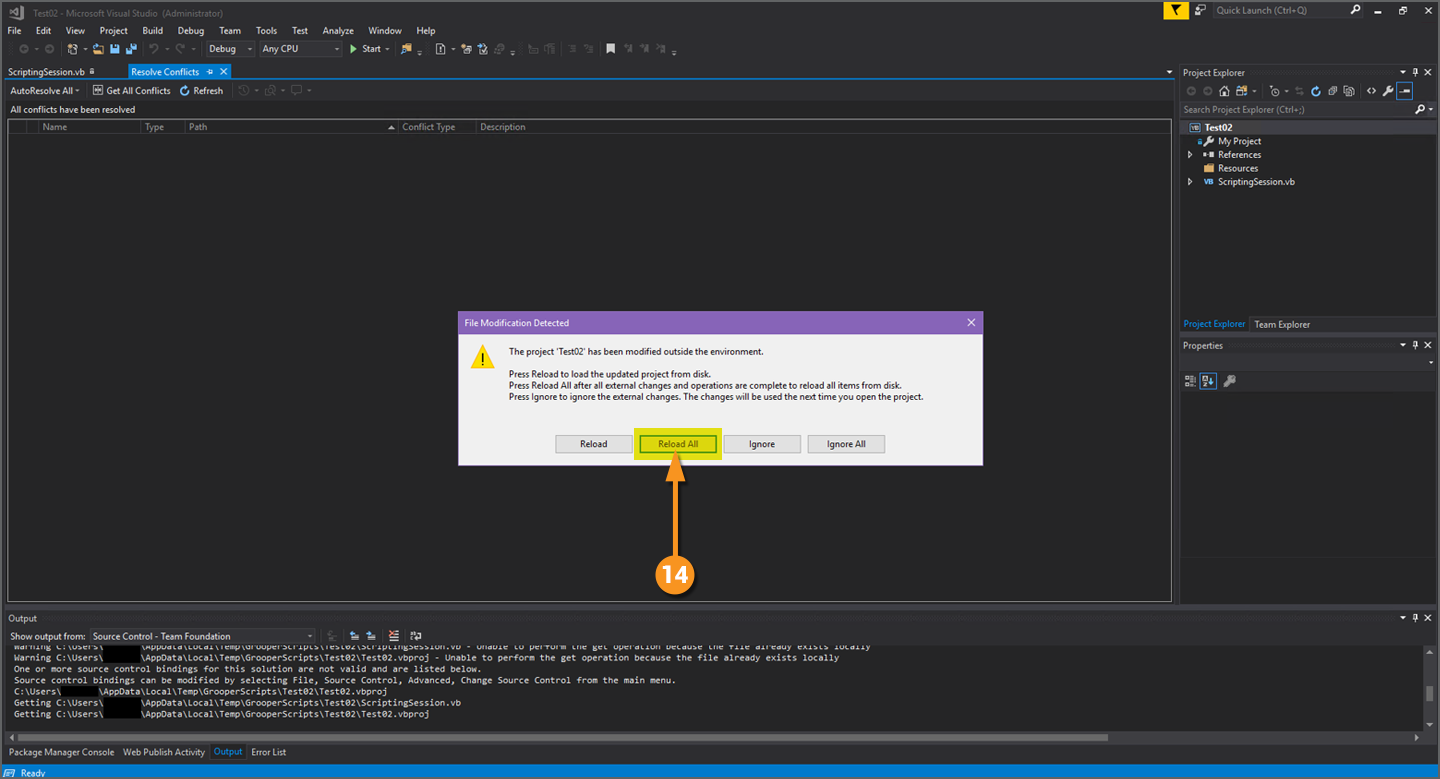
- If you receive a message stating the solution has been modified, click "Reload All" to refresh the project.
|
|
|
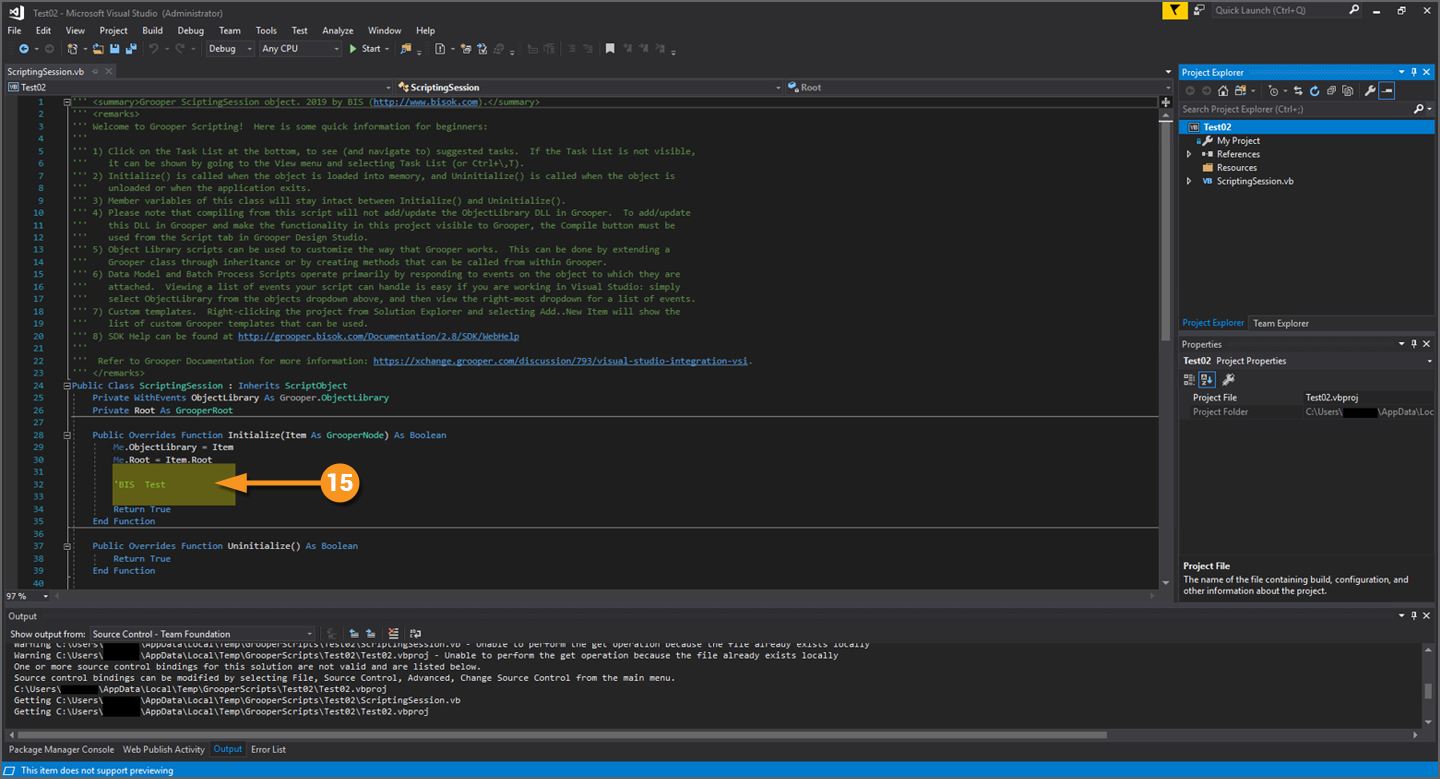
Your Grooper script should now be connected with TFS
- In this example, notice that the comment was pulled from the latest source from TFS.
|
|




